Cloud Dev Environment Guide: What It Is and How It Works
Learn what a cloud dev environment is, its core components, infrastructure needs, latency trade-offs, and how to control access and spend.
You unbox a new laptop, clone the repository, and run the start command. It fails. Node is the wrong major version. You fix that, and Postgres isn't running. You install it, then discover the app expects a Redis URL and an API key nobody mentioned. By late afternoon the app finally boots, and you still haven't written a line of feature code.
That first day is a rite of passage, and it's also pure waste. Every teammate repeats it, on every machine, and each one ends up with a slightly different setup that fails in slightly different ways.
A cloud dev environment removes that day from the calendar.
What a Cloud Dev Environment Actually Is
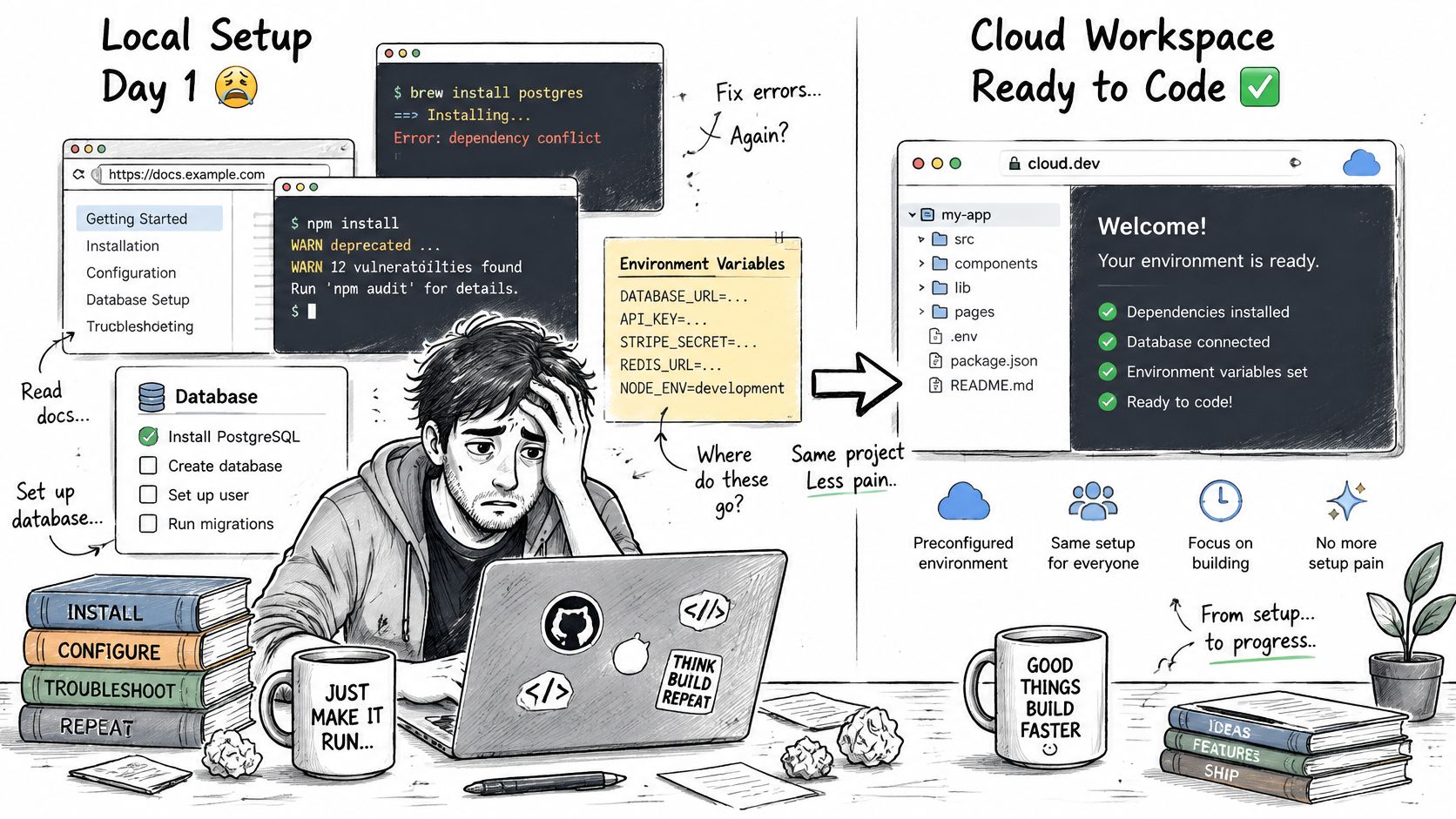
A cloud dev environment is a complete, hosted workspace that holds your project's code, its language runtimes, its build tools, a terminal, and the services the app depends on, reached through a browser or a local IDE connected over a secure tunnel. The work happens on someone else's machine, and you attach to it.
Think of it as a fully stocked rented workshop. You walk in, the benches are set up, the tools are sharpened, the power is on, and you can start work in minutes from any laptop you happen to have. A local setup is your own garage: you buy the tools, you maintain them, and you keep them in step with everyone else's garage by hand.
The distinction that trips people up is the one between a cloud editor and a cloud dev environment. A cloud editor edits files. A cloud dev environment also runs the build, executes the test suite, serves language-server responses, hosts the dev server, and talks to a database. If the workspace can take a fresh clone and get the app running without you installing anything, it's a dev environment. If it only shows you text, it isn't.
| Factor | Local machine | Cloud editor | Cloud dev environment |
|---|---|---|---|
| What it holds | Files and everything you installed | Files only | Files, runtimes, tools, terminal, services |
| Runs builds and tests | Yes, on your hardware | No | Yes, on remote compute |
| Setup comes from | Your memory and your notes | Nothing to set up | A definition file in the repository |
| Reaches a database | After you install and configure one | No | Yes, provisioned with the workspace |
| Survives a laptop change | No | Yes | Yes |
The category is no longer a niche experiment. Growth Market Reports valued the global remote development environment market at USD 4.6 billion in 2024, an estimate of market size rather than a count of workspaces in use.
The test that settles it: can the workspace take a cold start, with no cached state, and get the project running and tested? If yes, it's a cloud dev environment. If it can only display the files, you're looking at an editor.
Core Components Every Cloud Dev Environment Includes
Nine parts make up a working environment. The table lists each one with its job and a typical example.
| Component | What It Does | Typical Example |
|---|---|---|
| Compute | Runs the editor backend, terminals, builds and tests | Remote VM or container with 2-8 vCPU |
| Editor access | Connects a browser or local IDE to the workspace | Browser-based VS Code or desktop IDE over a secure tunnel |
| Source sync | Clones and updates the repository inside the workspace | Git clone on creation, branch switch on demand |
| Environment definition | Declares tools, runtimes and extensions as code | devcontainer.json or a Nix flake |
| Persistent storage | Keeps dependencies, caches and work when the workspace stops | Attached volume that survives suspend |
| Backing services | Supplies databases, object storage, auth and queues | Postgres, Redis-compatible cache, S3-compatible storage |
| Credentials and secrets | Gives the workspace keys without copying them into code | Environment variables scoped to one machine |
| Network access | Exposes ports for previews and webhooks | Forwarded port with a shareable URL |
| Lifecycle controls | Starts, suspends, expires and deletes workspaces | Idle timeout and deletion deadline |
The nine parts in one project
Take a Next.js app as a worked example. Its compute runs next dev, the test runner, and the type checker, which is why memory matters more than raw clock speed. Its editor access is either VS Code in a browser tab or your desktop editor attached over a tunnel, and both reach the same machine.
Source sync pulls the repository when the workspace is created, so the branch you select is the branch you build. The environment definition sits in the repository and declares the Node.js version, the package manager, and the extensions the project needs. Persistent storage holds node_modules and the package manager's cache, which is the reason a resumed workspace starts in seconds rather than minutes.
The app's backing services are a Postgres database and an object storage bucket for uploads. Credentials arrive as environment variables scoped to that single workspace, so a leaked key from one machine doesn't open every other machine. Network access forwards the dev server port so a preview URL exists for webhooks and for reviewers. Lifecycle controls decide when the workspace suspends on idle and when it expires for good.
Keep the environment definition in the repository, not in a platform dashboard. When it lives in Git, every teammate rebuilds the same setup from the same file, and a change to the runtime version arrives as a reviewable diff instead of a Slack message.
Do this before you provision anything: list what your project actually needs and tick off each row in the table. Every row you can't fill is a gap that will block your first cold start.
Infrastructure Needs for Each Project Size
A cloud dev environment is a cost-bearing boundary with its own lifetime: it burns money while it runs, it holds secrets while it exists, and deleting it should be a routine event rather than an emergency. The sizes below are starting points to measure against. Pick the row closest to your project and expect to move.
| Project Type | Compute | Storage | Backing Services | Latency Target |
|---|---|---|---|---|
| Solo prototype | 2 vCPU, 4 GB RAM | 10-20 GB volume for caches | One free-tier database and one API key | Keystroke response under 200 ms |
| Team monorepo | 4 vCPU, 8-16 GB RAM | 50-100 GB shared cache volume | Shared Postgres, Redis-compatible cache, object storage | Regional workspace near the team |
| Multi-service build | 8-16 vCPU, 32 GB RAM | 100 GB or more for build caches and images | Queues, vector search, separate test databases | Build pool separate from interactive workspace |
| Production-adjacent staging | Pinned size matching production | Backups and restore points | Multi-region backups and uptime agreement | Monitored p95 command latency |
The three numbers that pick the row
vCPU sets how much parallel work the machine can do. The dev server, the type checker, the test runner and a watcher all compete for it, and when they lose that competition you feel it as lag, not as an error message. RAM is what language servers and test runners consume, and it is the resource developers under-provision most often: a TypeScript language server on a large repository will happily take 2 GB on its own. Persistent storage holds dependency caches, and in a monorepo those grow faster than anyone expects because every package keeps its own node_modules tree.
Here is a concrete example. A monorepo with three services and a shared Postgres database usually fits the team row. If the build also compiles several native modules, it belongs one row down, and the build pool should be kept separate from the interactive workspace so a long compile never makes typing feel sluggish.
Notice what the table does not say: how long each workspace should live. That decision is part of sizing too. A prototype workspace can expire in days, a staging workspace in weeks, and anything backing production traffic needs backups and restore points instead of an expiry date.
Where the services come from
You can create a database in a provider console, copy the connection string, and paste it into an environment file. That works once. It becomes a maintenance problem the moment a second developer or a coding agent needs the same thing, because the copying has to be repeated by hand each time.
The ExtraOrbital CLI takes a different route. It detects services by matching exact variable names from its catalog, checking names in .env.example, .env.sample or .env.template first, then empty or placeholder values in .env or .env.local, then variable names referenced in source code. Running npx extraorbital provision in a project folder detects missing credentials, creates the matching services, and writes them to .env or an existing .env.local file, keeping the values that already work. Plan tiers and allowances are compared on the managed services pricing page, which matters when you decide whether a workspace stays on the free tier or moves to paid backups.
The boundary idea pays off here. Because provisioning is repeatable, a workspace is disposable: you can delete the prototype, and a new one can be rebuilt with the same services and fresh credentials instead of inheriting the old machine's secrets.
A staging workspace with pinned sizes and restore points belongs to a different tier from a prototype, and treating the two as one environment is how prototypes end up carrying production backup costs. Measure build time and peak memory for one week, then move exactly one row up or down and measure again.
How a Cloud Dev Environment Starts and Runs
The sequence below is what happens between clicking create and running your first test. Each step has a reason and a common slip.
Define the environment in the repository. A
devcontainer.jsonor equivalent file declares the image, runtime versions, tools and extensions. A missing or unpinned tool version is the most frequent cause of a failed first run, and the usual slip is pinning a version only on your own machine. Keep the definition under version control so the pin travels with the code.Request the workspace in a region near the team. Distance adds delay to every keystroke and every language-server round trip. The slip is defaulting to whichever region the platform lists first, which is often far from most of the team.
The platform allocates compute and attaches a persistent volume. The caches and your uncommitted work will live here. If allocation is slow, check the sizing row and the region quota before assuming the platform is at fault.
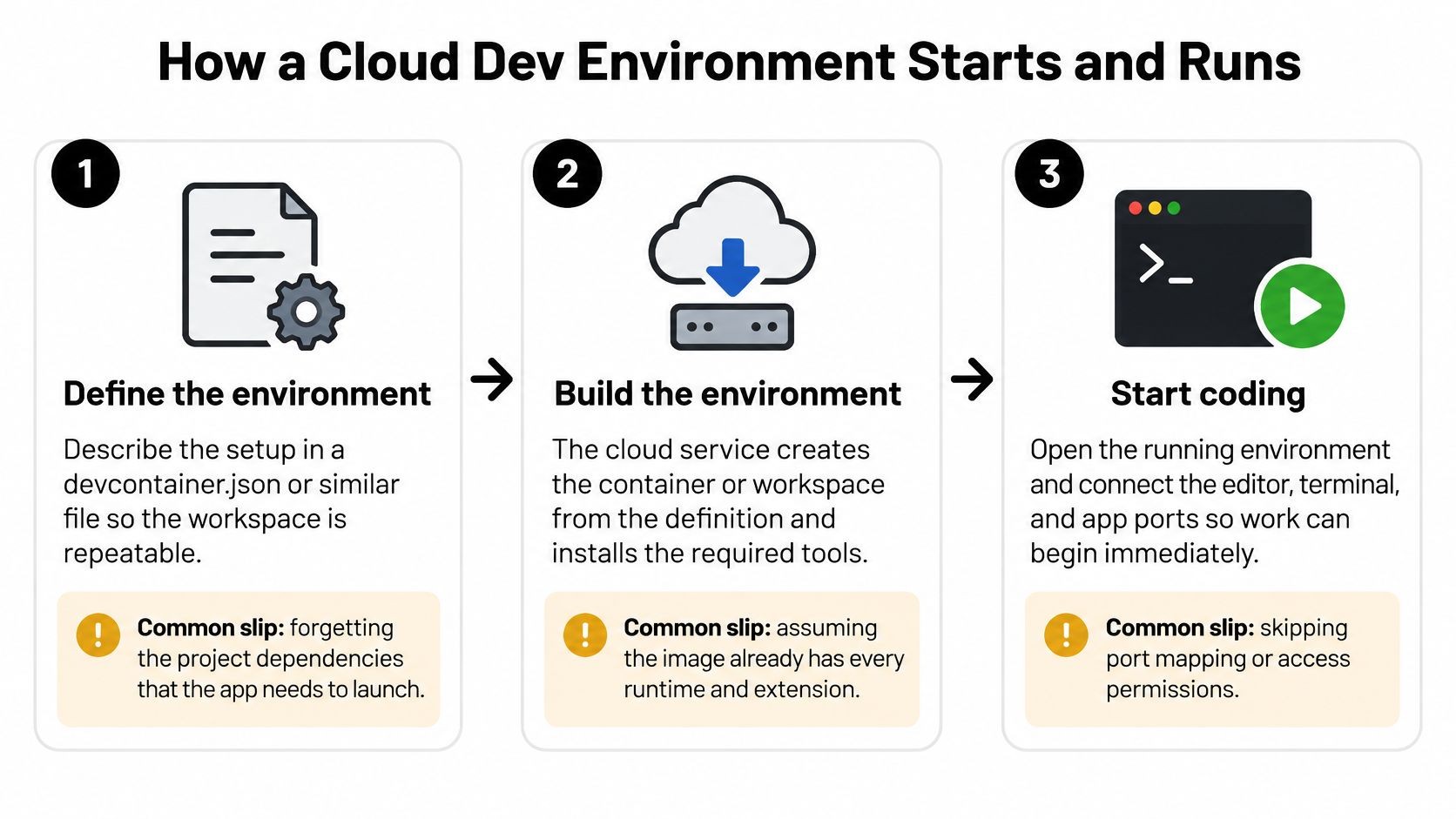
Clone the repository and install from the lockfile. The lockfile is what makes your install match your colleague's. Installing without one produces different dependency trees on each machine, and regenerating the lockfile in the middle of setup is how a working environment suddenly stops working.
Provision backing services and write their connection details into the environment file. This is the step where credentials enter the workspace, and the slip is pasting a live key into a tracked file. Without credentials, the CLI registers the machine and starts in a free sandbox; running login links that sandbox to your account.
Open the editor and run the app and its tests. Browser or desktop IDE, same machine either way. Confirm the preview URL responds and that the test suite passes before you tell anyone the environment is ready.
Suspend on idle and resume later. Suspend keeps the attached volume, so dependencies and caches survive, which is why the second start is fast. Deleting is a different operation with different consequences, covered below.
One habit that prevents most surprises: run a true cold start, a fresh workspace with no cached state, before you share the setup. That's the experience your next teammate will have.
Keep the definition readable by both people and tooling; the discipline behind configuration as code is what makes step one worth doing at all.
Where Latency Hurts the Inner Development Loop
A cloud dev environment trades local setup effort for network-sensitive interaction. That's the honest version of the bargain, and it's why some teams try one and go back to their laptops.
Microsoft Research identifies slow build speed, limited compute power and latency as factors that reduce developer productivity in its work on remote and local development trade-offs. The useful question isn't whether the cloud machine is powerful. It's whether the loop you use forty times a day is fast.
The inner loop is the path a developer repeats constantly: typing, waiting for language-server responses, running a terminal command, watching files change, getting incremental build output, seeing test results. Everything else, including the big background build that runs once, sits outside it.
A 20-second delay every time you save costs far more attention than a 3-minute build that runs while you're reading code. The save delay interrupts a thought; the build doesn't.
Controls that actually move the numbers
- Choose a nearby region. This is the single largest lever, and it's a decision made once at workspace creation.
- Keep source and dependency caches on fast persistent storage. A cold cache turns every command into a download.
- Cut round trips in tooling. File watchers, language servers and test runners all make many small calls; each one pays the network cost.
- Separate interactive work from large builds. A compile saturating every core makes the editor feel broken even though nothing is wrong.
Measure p50 and p95 command latency, not averages. The tail is what people remember, and an average hides a p95 that makes the environment feel unreliable.
For autonomous coding agents the calculus changes. An agent benefits from throughput and doesn't care about a two-second terminal pause; the human reviewing its output still does. Give agent execution time, build duration and human-facing interaction delay separate budgets and separate metrics, so a fast build doesn't disguise a workspace that feels slow to type in.
Who Uses Cloud Dev Environments and for What
Adoption moved quickly. Docker's State of Application Development Report found that 64% of developers reported using non-local environments as their primary development setup in 2025, up from 36% in 2024.
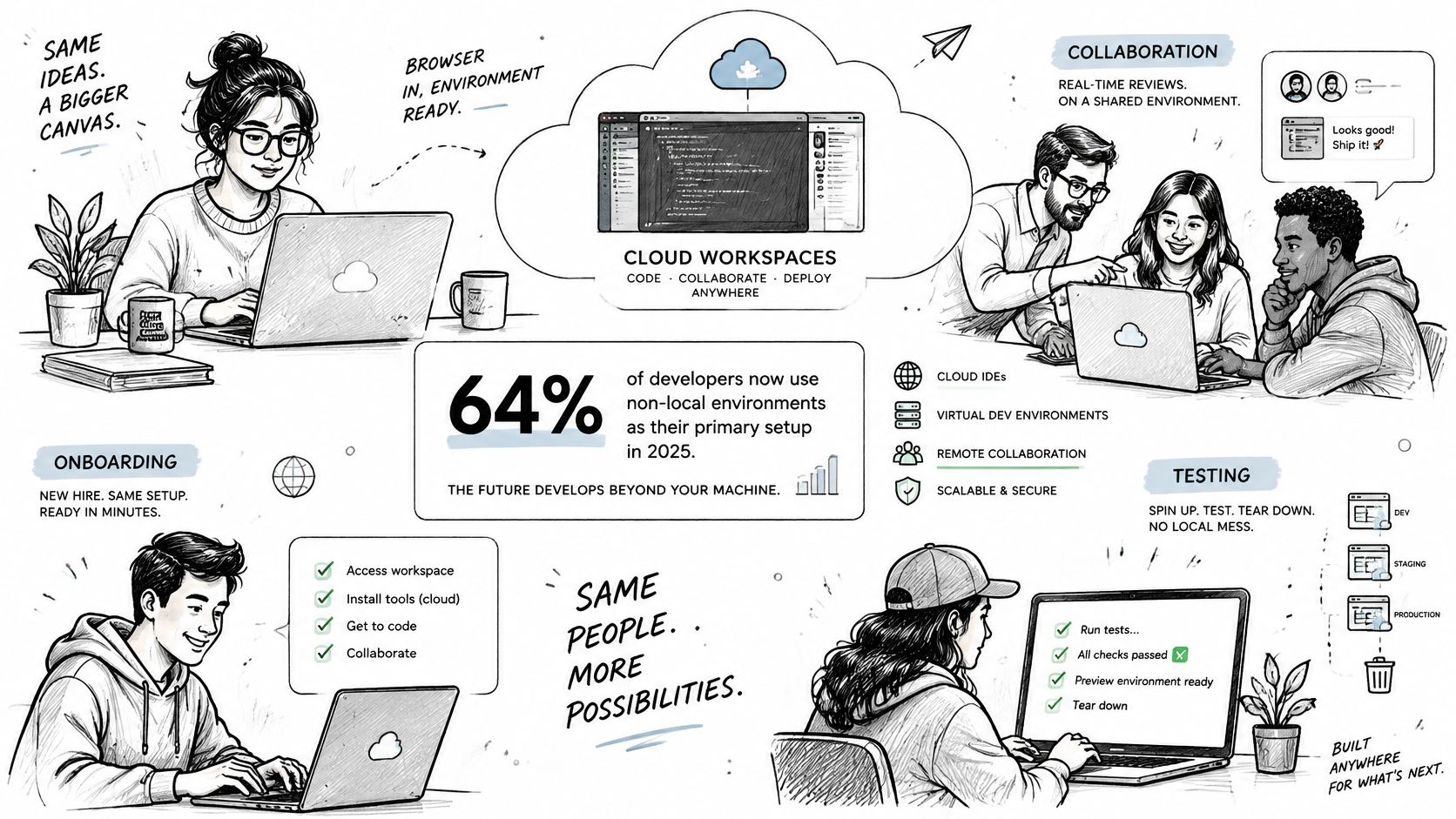
The use cases split into five patterns, and each has a different reason for existing.
Onboarding a new hire. A developer clones the repository and reaches a running app without installing anything locally. The first pull request arrives days earlier, and the setup knowledge stops living in one person's head.
Reviewing a branch or shipping a hotfix. A reviewer opens the branch in a workspace from any laptop or tablet, including one that has never had the project's toolchain on it. The review happens against a running app, not a diff.
Prototyping without accounts. An individual builds a project without creating a provider account or installing a local toolchain. An agent can provision in its own sandbox on a free allowance without an account, and a human can later claim the project and move it to production.
Standardizing a monorepo. A shared configuration gives every service the same runtime, so a version bump lands once instead of in eight service folders.
Running autonomous agents. A coding agent edits code and runs tests in its own sandbox, separate from your working copy, with permission limits that the access section covers.
Where a cloud environment is the wrong tool
Offline work is the obvious one: a plane, a train tunnel, a flaky hotel network. Very large local hardware needs, such as a GPU-bound training run on your own machine, are another. The third is work that cannot leave a network boundary, where the code and data must stay inside a specific environment you don't control.
Here's a short walkthrough of the workflow in practice.
To decide, name the biggest daily pain your team has. If it's onboarding, start with the onboarding case. If it's "works on my machine" bugs, start with standardization. Then check the three edge cases before committing, because a team that works offline half the week will resent an environment that assumes a network.
Controlling Access, Secrets and Spend
An agent that can provision databases, expose services or incur spend needs a different permission model from one that only edits code. Treat the workspace as an auditable security boundary, not a remote desktop.
The concern is widespread. The 2025 Stack Overflow Developer Survey found that 87% of respondents were concerned about AI-agent accuracy and 81% about security and privacy. Those numbers explain why developers avoid handing agents CI and deployment credentials.
Start with least privilege: each machine gets credentials scoped to itself and to specific resources, an immutable audit trail records every operation, and a machine can be revoked or a project's secrets rotated in one action. Rotation matters because a credential committed to Git history stays in that history. The CLI adds the environment file to .gitignore, but it cannot remove credentials already committed, so rotate anything that has been pushed.
The cost assumption worth challenging
Most guidance treats shutting down the workspace as the end of the bill. It isn't. A 2025 survey of 700 engineering leaders and developers estimated that 21% of enterprise cloud infrastructure spending, or $44.5 billion, was wasted on underutilized resources, with fewer than half reporting real-time visibility into idle resources.
The same pattern shows up at workspace scale. The visible machine stops; the resources behind it often don't.
| Resource | Survives Workspace Deletion | Control |
|---|---|---|
| Workspace compute | No | Idle timeout and automatic shutdown |
| Attached volumes | Often yes | Snapshot, then delete, or set a lifetime |
| Databases | Yes | Expiration deadline and budget cap |
| Object storage buckets | Yes | Lifecycle rule and deletion date |
| Snapshots and backups | Yes | Retention limit set in the backup policy |
| Stored credentials | Yes, until rotated | Revoke the machine and rotate project secrets |
The rule that keeps budgets sane: temporary infrastructure is useful only when its owner, its lifetime and the consequences of deletion are written down before it's created.
Put an expiration deadline on every prototype and a budget cap in place before provisioning, not after the first surprising invoice. Track spend per project rather than per workspace, and measure cost per accepted change instead of cost per running hour, because that's the number that shows whether the experiment produced anything.
Credential scope deserves the same treatment as the workspace itself; the practices for keeping application secrets out of code apply directly to an environment an agent can reach.
Set Up Your First Cloud Dev Environment
Pick one project with a clear pain, ideally one where onboarding currently takes a day. Inventory its components against the table earlier in this guide, then write the environment definition into the repository. A definition that lives in version control behaves like a recipe card taped inside the kitchen door: anyone who walks in can cook the same meal, and nobody has to guess which ingredients the last cook used.
Before you provision anything, set three things: an expiration date, a budget cap, and the credential scope for the machine. Doing this first means a forgotten workspace can't outlive its usefulness.
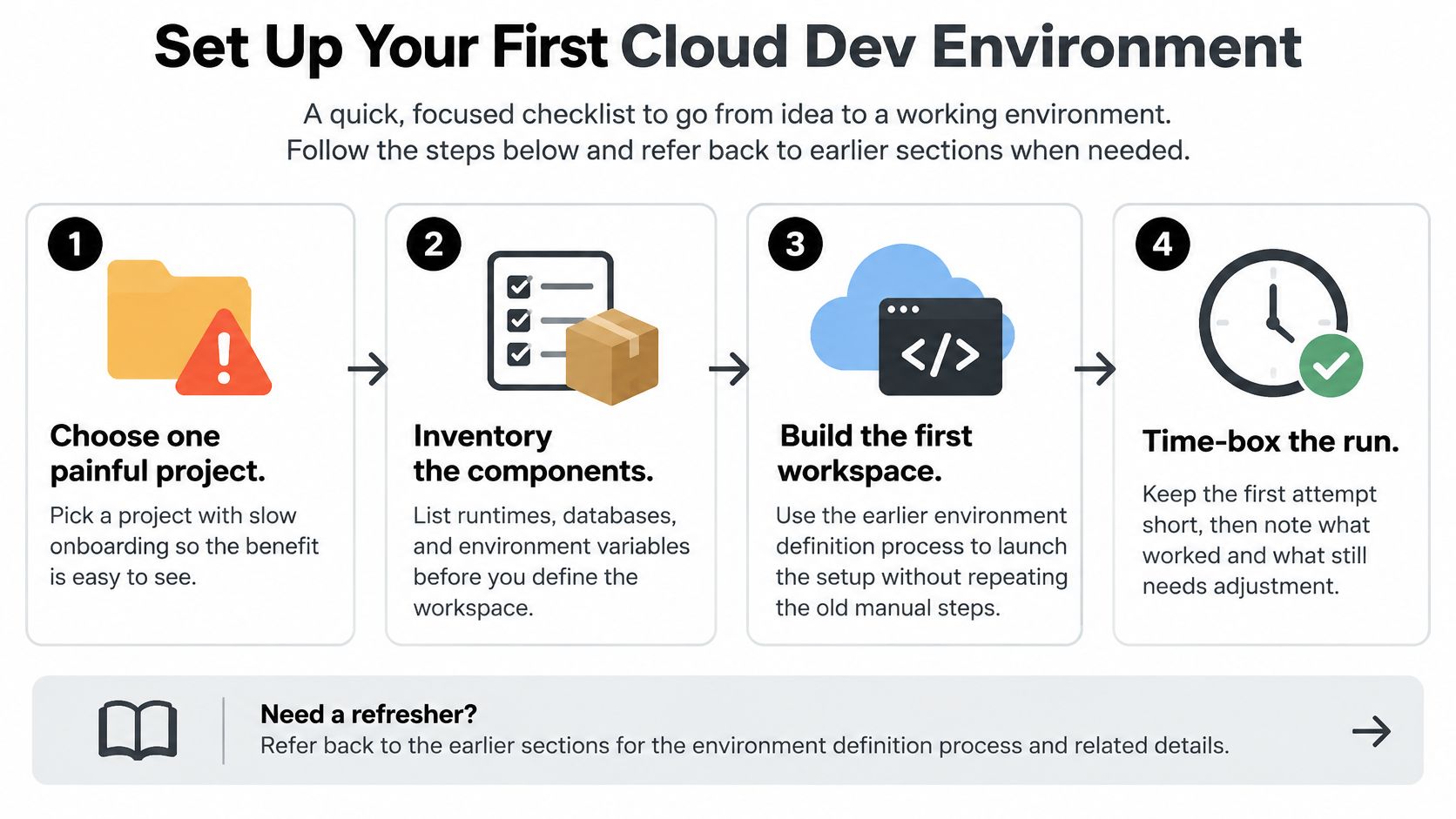
Then run the cold start from the start-up steps and confirm the app and its tests pass. One confusion is worth clearing up early: the first run is always the slow one, because images download and dependencies compile, so judge the environment by the second and third starts instead. In the first week, record build time and keystroke delay, and use those measurements to decide whether to move up a sizing row.
One option for the provisioning half is ExtraOrbital. The Free plan costs $0 forever and includes a free allowance on every provisioned resource, credentials written straight to .env, and small models with $5.00 of usage once per account. Its limits are worth stating plainly: Free is for building, not production, with no backups and no uptime guarantee. An agent can also begin provisioning inside a free sandbox before anyone creates an account, and a human can claim the project later and move it to production billing. That sequence matters because it keeps the moment of payment separate from the moment of experimentation, so a prototype never stalls waiting for approval paperwork.
You're done when two things are true. The cold start works from a fresh workspace, and the expiration plan is closed, meaning someone owns the resources and knows what happens when the deadline passes. At that point the setup is ready to hand to the rest of the team.
If you'd rather spend your first session building than wiring up databases, buckets and API keys by hand, ExtraOrbital handles the provisioning and credential side of the setup. Running npx extraorbital provision in your project folder detects missing credentials, creates the matching services, and writes the connection details to .env or an existing .env.local file, without accounts at each individual provider. You still bring your own workspace; what you skip is the afternoon of copying keys between consoles. Set the expiration date before you run it, and claim the project when it's ready for production.