Run Control Panel as Admin: What Actually Elevates
Learn how to run Control Panel as admin in Windows 11 and 10, which applets truly need elevation, and why the whole window often stays standard-user.
Most Windows guides tell you to run Control Panel as admin by right-clicking its Start menu tile or pressing Ctrl+Shift+Enter on control.exe, then stop there. That advice misses how Windows hands out privileges. It's why so many people launch Control Panel with admin rights, then hit another permission prompt or a grayed-out button two clicks later.
Control Panel isn't a single administrative program. It's a shell container holding dozens of separate applets, and each one mixes standard actions with privileged ones. Opening the container window with admin rights rarely changes what those applets can do. Worse, many of the settings you're chasing have already moved to the Settings app on modern Windows 11 builds, so an admin Control Panel can leave you staring at a tool that no longer controls the thing you came for.
The useful skill is targeting the exact applet or task that needs an administrator token, confirming the elevation took hold, and knowing when Control Panel is the wrong door entirely. Get that right and the UAC prompts stop being friction. They become a signal you already understand.
How to Run Control Panel as Administrator
When you do need administrative rights for a legacy Windows tool, four launch routes cover almost every desktop setup: the Start menu search, the Run dialog, a pinned taskbar or Start shortcut, and the direct control.exe executable. The Start menu works best for one-off tasks, the Run dialog is fastest if you live on the keyboard, pinned icons suit repeat tools, and direct executable shortcuts let you save elevation settings permanently.
Before picking a route, keep one boundary in mind. If you're signed in as a standard user without administrator credentials, none of these methods will grant you administrator access; Windows will stop and display a credential prompt asking for an administrator account's password.
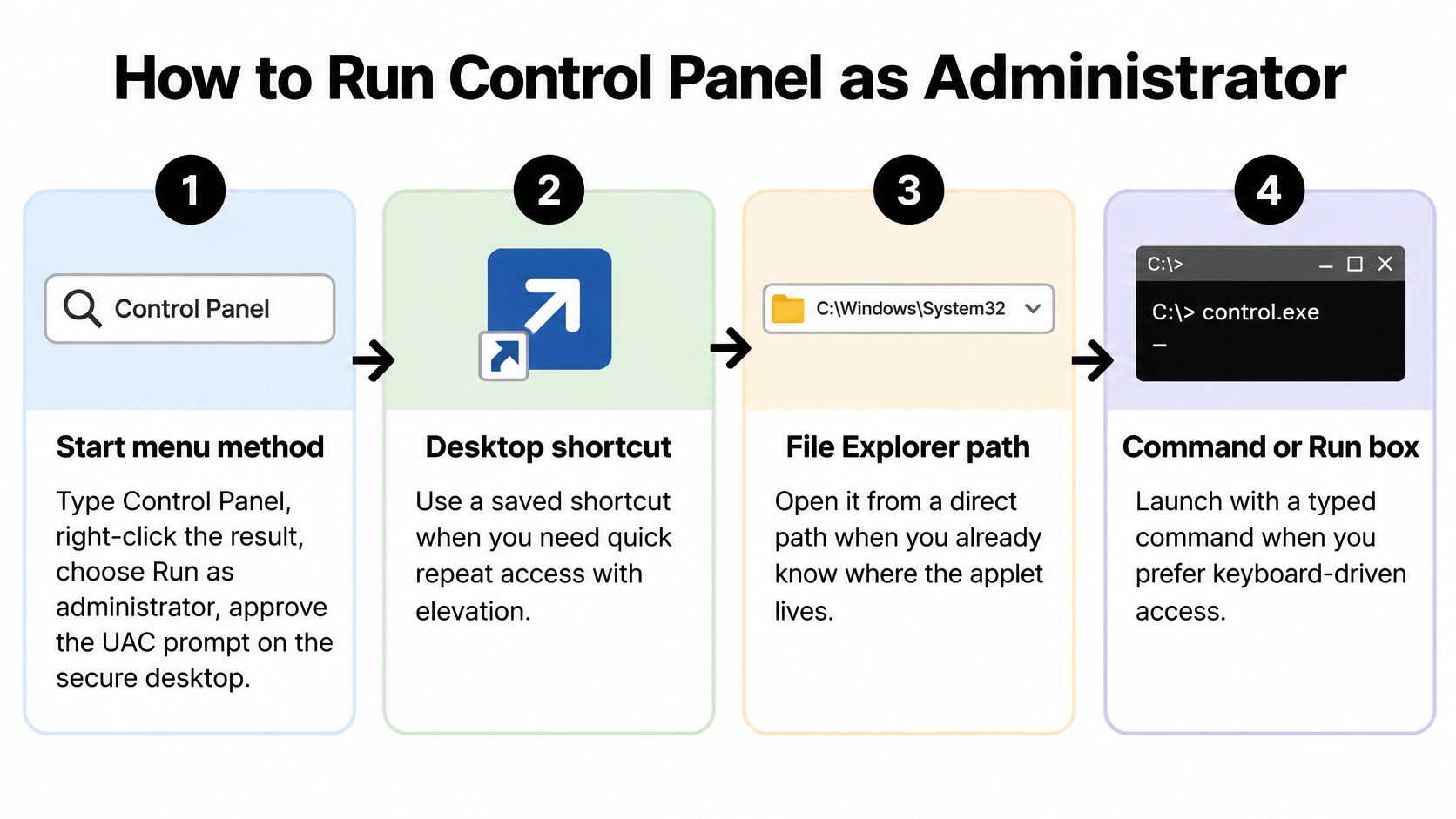
Four ways to launch the container elevated
- Start menu search: Press the Windows key, type
Control Panel, right-click the top Control Panel result, and select Run as administrator. When the User Account Control (UAC) prompt dims the screen on the secure desktop, click Yes to continue. - Run dialog keyboard shortcut: Press
Win+R, typecontrol, and instead of hitting Enter, holdCtrl+Shiftand pressEnter. That three-key combination tells the Windows shell to request elevation directly without navigating menus. - Taskbar or Start pin: Right-click your pinned Control Panel icon, then right-click Control Panel inside the jump list and choose Run as administrator. Some pinned shell shortcuts strip the administrative verb from the jump list; if the option isn't there, fall back to the Start menu search route above.
- Direct executable or permanent shortcut: Press
Win+R, typecontrol.exe, and pressCtrl+Shift+Enter. If you want a desktop shortcut that always asks for elevation, right-click the shortcut, open Properties, go to the Shortcut tab, click Advanced, tick Run as administrator, and click OK twice.
The faster shortcut for a single applet
Running control.exe still drops you at the category menu, where child applets frequently spawn without admin rights anyway. I would skip the container completely and run the specific .cpl file you need from the Run box.
Press Win+R, type the applet's command, and press Ctrl+Shift+Enter:
- Date and Time: Type
timedate.cplto jump straight to clock and time settings. - Network Connections: Type
ncpa.cplto open legacy network adapters without clicking through three menus. - Programs and Features: Type
appwiz.cplto reach the classic uninstall and repair list directly.
To confirm your launch succeeded, check the target dialog once it opens: if the title bar displays an administrative state or the UAC shield icon on the protected button disappears, the admin token is active.
Which Control Panel Tasks Really Need Admin Rights
Here's the detail most tutorials skip: the Control Panel window isn't the unit of elevation. According to Microsoft's User Account Control architecture guide, Windows enables UAC by default with administrator accounts running in Admin Approval Mode, meaning everyday applications launch with a filtered standard-user token even when you're a member of the local Administrators group.
Because Windows spawns Control Panel with that filtered token, opening the window doesn't turn every tool inside it administrative. Individual applets mix routine user settings with protected system changes, and Windows requests the full administrator token only when you click an action marked with the Windows security-shield icon. Standard users see a credential prompt requiring an administrator's password, while administrators see a consent prompt.
| Applet | Works as standard user | Needs admin token | Modern equivalent |
|---|---|---|---|
Date and Time (timedate.cpl) | View clock, change time zone, add clocks | Change local system date and time | Settings > Time & language > Date & time |
| User Accounts | View your own account, change your own picture | Create accounts, change account type, reset another user's password, manage UAC | Settings > Accounts |
Device Manager (devmgmt.msc) | Open and browse devices read-only | Install, update, disable or roll back a driver, scan for hardware changes | Settings > System > About > Device Manager |
Network Connections (ncpa.cpl) | View adapter status and connection details | Change adapter properties, IP settings, enable or disable adapters | Settings > Network & internet > Advanced network settings |
Programs and Features (appwiz.cpl) | Browse installed programs and sizes | Uninstall, change or repair an installation | Settings > Apps > Installed apps |
| Windows Defender Firewall | View current profiles and status | Create, edit or delete rules, turn profiles on or off | Settings > Privacy & security > Windows Security > Firewall & network protection |
| Region and Language | Change display language and formatting for your own account | Change system-wide language or install language packs | Settings > Time & language > Language & region |
Power Options (powercfg.cpl) | Change the active plan for your own session | Change plans that apply system-wide, edit protected settings | Settings > System > Power & battery |
System (sysdm.cpl) | View basic system information | Change computer name, environment variables, device installation settings | Settings > System > About |
Reading the privilege split in practice
Date and Time shows this split cleanly. Any user can check the clock, add secondary clocks, or change the time zone without elevation, yet altering the local system time demands the full administrator token and displays the shield icon.
Device Manager behaves similarly: launching it without elevation opens a read-only view so you can inspect hardware IDs or status codes safely, while installing, updating, disabling, or rolling back a driver requires elevation. The same boundary applies to Network Connections (viewing status versus modifying TCP/IP properties), Programs and Features (browsing installed software versus uninstalling or repairing), and User Accounts (updating your own profile picture versus resetting someone else's password). Region and Language settings stay mostly per-user unless you install language packs or alter system defaults.
Notice the final column of the table, too. Before you bother running a legacy applet as admin, check whether the Modern equivalent in Settings already exposes the switch you need. Disabling UAC or enabling "Run without prompting" to avoid clicking through these shields removes a critical confirmation boundary and makes silent, unauthorized changes far more likely.
Three diagnostics for unexpected prompts
When elevation behaves strangely inside an applet, the prompt pattern tells you what's happening:
- A second UAC prompt appears after you already elevated: That's normal behavior. Many Control Panel views hand off protected actions to a separate helper executable that requests its own token.
- An elevated window asks for a username and password: The task needs a different account with higher or delegated permissions, not another click of approval from your current session.
- An access-denied message appears with no UAC prompt at all: A Group Policy rule or system permission blocked the action, which means elevation won't solve it.
Why Windows Asks for Approval at All
Picture a typical Monday morning sign-in on a Windows workstation. You enter your PIN on a local administrator account, open your browser, check email, and then open a system setting to adjust a driver. From your perspective, you're an administrator the entire time, so the sudden UAC dim-out feels like friction.
Under the hood, Windows is protecting that session by splitting your identity in two. As explained in Microsoft's security policy documentation on Admin Approval Mode, Windows introduced User Account Control with Windows Vista, released to manufacturing in November 2006, to end an era where belonging to the local Administrators group automatically handed every program unrestricted read, write, execute, and system rights.
When an administrator signs in under this model, Windows creates two separate access tokens: a full administrator token and a filtered token that behaves like a standard user's token. Your desktop shell, browser, and routine utilities all run with the filtered token. Only when you explicitly request elevation does Windows attach your full administrator token to that specific process.
That same least-privilege redesign explains why Microsoft disables the built-in Administrator account by default on Windows Vista and later versions. On a non-domain-joined PC, the first local account you create gets equivalent local-administrator permissions, yet it still operates under Admin Approval Mode so everyday apps can't modify protected system files behind your back.
Four terms that Windows users mix up
Most confusion around running Control Panel as administrator comes from collapsing four separate Windows concepts into one:
An administrator account is a user profile that belongs to the local Administrators group. Having that account doesn't mean everything you click runs with system-wide authority. The administrator token is the actual security credential holding those privileges, which Windows keeps set aside until needed.
An admin process is a specific running program or applet that Windows has launched using that full token. Finally, UAC approval is the consent or credential checkpoint that authorizes Windows to attach the full token to the new process.
Reality check: Choosing "Run as administrator" never overrides Group Policy, never unlocks another user's password, never repairs a broken Control Panel applet, and never grants access to files your account is explicitly denied from reading.
On corporate or school devices, IT teams often configure policies that route elevation requests to a separate administrative account. That's why your personal laptop shows a simple Yes or No consent box while a colleague's managed laptop demands a separate admin username and password. Turning UAC off or setting it to approve automatically removes this gate completely, meaning any malicious script or infected attachment you accidentally launch immediately inherits full administrative control without a single warning.
Legacy Applets Versus the Settings App
For years, support articles treated Control Panel as a permanent fixture of Windows 10 and Windows 11, focusing almost entirely on clever ways to pin or launch control.exe with admin privileges. That assumption is wearing thin. Microsoft states that Control Panel remains primarily for compatibility and directs users toward the Settings app wherever possible, even though no final removal date has been announced.
The migration hasn't stalled either. As The Register reported on Windows 11 Insider updates, Microsoft has continued shifting legacy options, including language and time-related controls, out of Control Panel and into Settings. Shortcuts that worked last year can redirect you to a modern Settings page or drop you into a stripped-down dialog.
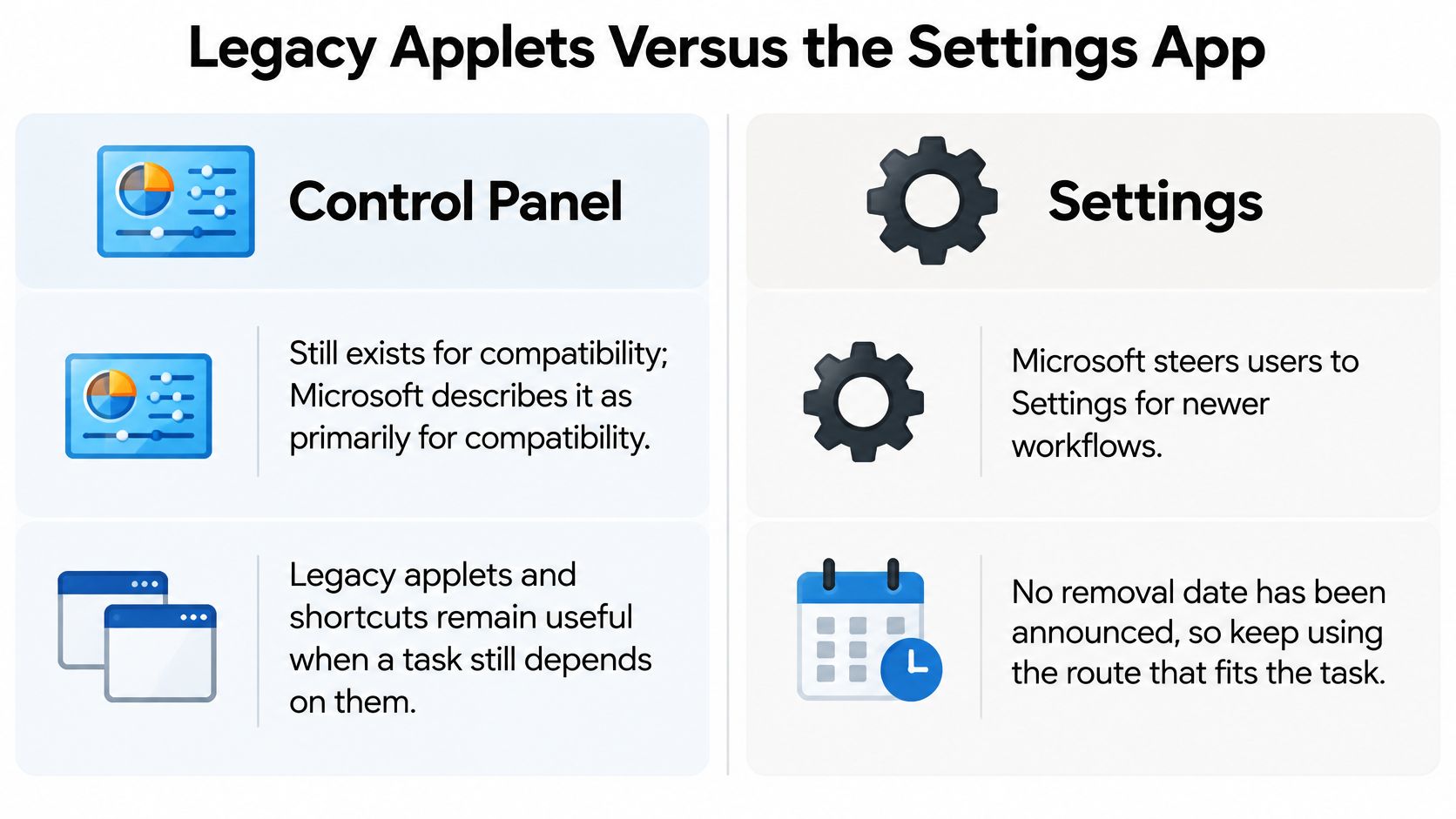
A better rule saves time and limits risk: identify the exact setting you need to change first, then take the shortest supported path available on your Windows build.
Picking the right tool for your Windows build
Different machines call for different administrative paths, so match the interface to the environment in front of you:
- Current Windows 11 builds: Handle Date & time, Language & region, Installed apps, Power & battery, and most everyday network changes inside Settings. Raising
sysdm.cplorappwiz.cpljust to reach options that already live cleanly in Settings grants extra privilege and triggers prompts you don't need. - Older Windows 10 machines or domain-joined fleets: Reach for Local Group Policy or Computer Management (
compmgmt.msc) when managing local users, services, disks, or policy-backed settings. Those management consoles give you direct administrative scope and clearer error feedback than legacy Control Panel links. - Legacy-only configuration tasks: Some advanced controls, such as specific network adapter bindings or older ODBC and mail profiles, still exist only inside classic applets. When you really need one, raise that specific
.cplfile instead of the parent container.
Building desktop shortcuts against control.exe creates brittle workflows because the container can outlive the individual applet you're trying to reach. Point repeat shortcuts directly at the .cpl or .msc target, and revisit them after major feature updates.
Elevate the operation, not the window.
Tips for Safe and Repeatable Elevation
Having UAC switched on won't protect a machine if you click Yes by muscle memory. Security depends far more on user habits than on software defaults, and in practice many users approve prompts without reading them. The dialog appears, the finger moves, and whatever asked for elevation gets it. Every habit below exists to break that reflex.
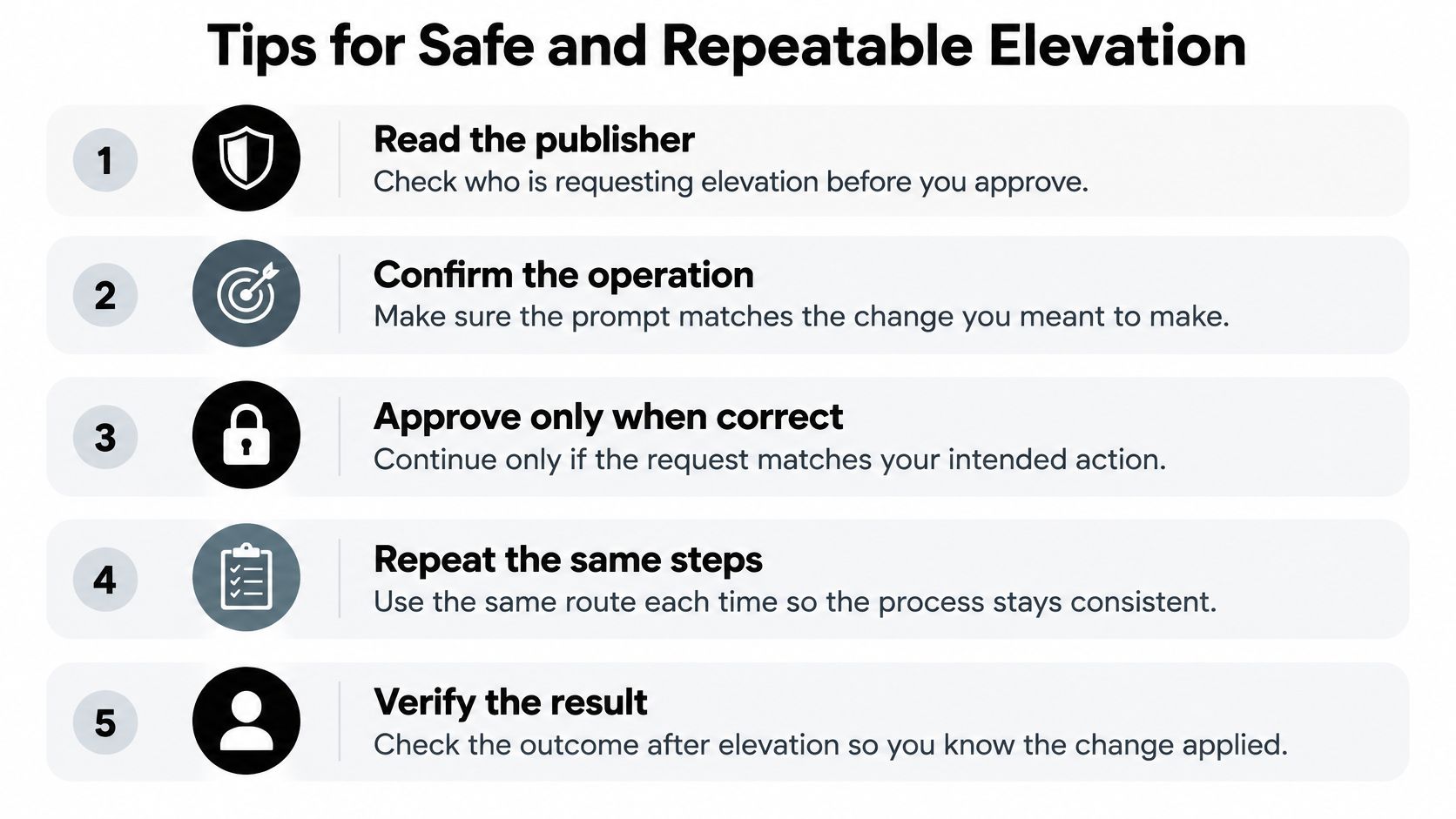
Habits that keep elevation safe
Treat every UAC prompt on the secure desktop as a five-point sanity check rather than a speed bump.
- Verify the publisher and exact operation first: Read the program name and verified publisher before approving anything. If you clicked Network Connections and the prompt shows an unrecognized executable, cancel immediately. The same rule covers prompts you never triggered: click No, then scan recent downloads and startup items instead of guessing.
- Make the smallest edit and close the window right away: Leaving an elevated Control Panel, Device Manager, or terminal sitting in the background widens the window for accidental clicks or child-process misuse while you browse the web or install unrelated software. Do the one change, close the window, done.
- Run a standard user account daily on sensitive machines: A standard account can't inherit administrative tokens, forcing deliberate credential entry whenever a system change occurs. On family or shared office PCs, have the account owner review account-type changes, driver installs, or firewall edits directly rather than sharing passwords around.
- Leave Admin Approval Mode intact: Never disable UAC or switch to quiet approval just to save a couple of clicks, because that single convenience toggle strips away your confirmation boundary. The two seconds a prompt costs you is the entire price of the protection.
- Create per-applet shortcuts sparingly: Save privileged shortcuts only for the two or three
.cplapplets you open every week, never for the entire Control Panel container. A shortcut you use daily stays familiar; one you use twice a year is a prompt you'll approve on autopilot.
The consistency matters more than any single item on the list. Elevation mishaps rarely come from missing shortcuts or broken Windows commands. They happen when busy users turn prompts off or approve unexpected dialogs without reading them, so steady habits beat clever launch tricks every time.
When Admin Launch Fails or Prompts Again
Running Control Panel as administrator isn't a single universal elevation switch, and expecting it to act like one leads straight into confusing dead ends. As Microsoft's User Account Control overview notes, Windows runs applications with a standard-user token by default, applies elevation selectively per operation, and still enforces organizational policies and permissions even when a process is elevated.
| Symptom | Likely cause | Fix |
|---|---|---|
| No Run as administrator option on the pinned shortcut | Shortcut was pinned from an applet that does not expose the verb | Enable Run as administrator in the shortcut's Advanced properties, or use the Start menu method |
| Window opens with no prompt but the action still shows a shield | Control Panel launched unelevated with the filtered token | Approve the second prompt when you perform the action |
| Access denied with no UAC prompt | Group Policy restriction or a standard account without administrator credentials | Ask the administrator; do not look for a bypass |
| Prompt asks for a password instead of Yes or No | Credential prompt policy or standard user account | Enter an administrator account's credentials |
| Applet opens blank or closes immediately | Corrupt or redirected applet | Use the Settings equivalent, or run sfc /scannow and DISM from an elevated terminal |
| Change applies to one user only | Per-user setting rather than a system-wide one | Change it at the system scope from an elevated applet |
Diagnosing the most frequent blocks
Start with the missing menu option, since it trips up people most often. When a pinned shortcut or jump list lacks Run as administrator, locate the original .cpl or .msc shortcut, open Properties, go to Shortcut > Advanced, enable Run as administrator, and re-pin that specific applet rather than the parent container.
If the window opens cleanly with no UAC box yet the button you want still wears a shield icon, nothing is broken. Click the shielded button and approve the prompt that fires for that specific task. By contrast, an immediate Access denied error with zero UAC prompt points to a Group Policy lock or a restricted standard account; contact your IT administrator instead of hunting for registry workarounds.
Seeing a username and password box instead of a simple Yes/No consent button means either you're on a standard account or security policy enforces credential prompts for administrators, so enter valid admin credentials to proceed. If an applet flashes blank or crashes on launch, try its modern Settings equivalent first; if the underlying system files are damaged, open an elevated Windows Terminal and run DISM /Online /Cleanup-Image /RestoreHealth followed by sfc /scannow. Finally, if a change sticks for your sign-in but vanishes for another user on the same PC, you edited a per-user preference rather than a system-wide setting, so reopen the applet and apply it at the system scope.
If you are elevated and still see a prompt, the task wants a different account, not more privilege.
Your Next Step After Elevating
Finish any local Windows change cleanly before moving on. Confirm you opened the specific applet you needed with admin rights, applied the smallest edit that solved the problem, and closed the open window. If the change was meant to affect everyone on the machine, sign in under a standard user session for ten seconds to verify it applied system-wide.
Sometimes, though, the "control panel" you need admin access to isn't inside Windows at all. If you're building web applications or running autonomous coding agents, administrative access in a hosted control panel works very differently from a local UAC dialog. Instead of clicking Yes on a desktop prompt, cloud administration relies on account roles, scoped machine credentials, rapid revocation, and a clear audit trail so you never share one root password across laptops and agents.

That's the layer where ExtraOrbital fits. ExtraOrbital handles provisioning and credentials, giving you one project, one central control panel, and one place to manage the bill without creating separate accounts with each infrastructure provider. From that control panel, you can monitor resources, review project health, manage credentials, configure backup policies, and track usage by resource, project, and team.
The workflow keeps least privilege practical for developers and agents alike. Without credentials, the CLI registers the machine and starts in a free sandbox, and running login links it to your account. Credentials stay scoped to individual machines and resources with an immutable audit trail, so administrative actions remain traceable and easy to revoke. If new provisioning is ever refused due to a limit or approval gate, resources already running keep running without disrupting live work. Note that the service is currently in preview, so rates, allowances, and plans may change.
Keep the two worlds clear: open the specific applet with administrator privileges when the job lives on your Windows PC, and manage roles, scoped credentials, and spending in a hosted control panel when the job is your application infrastructure.
If you want one control panel to manage databases, storage, scoped machine credentials, audit trails, and project spending across your developer workstations and autonomous coding agents, explore ExtraOrbital. You can start with a single CLI command in a free sandbox before linking your account, then govern every machine and resource from one place without juggling separate provider logins.